
Related links
Using your UniKey and password, you can log in to University systems to do things like check your email, access resources for your course, check when your library loan is due and vary your enrolment.
You will find links to our University systems on the Student website homepage. These include:
Get more information on other student IT services.
If you're after a quick set-up guide, check our Digital set-up page. We've got more detailed information about logging in to University systems below.

Remember to keep your UniKey details safe, as it allows access to your information and is necessary to complete tasks related to your study.
You can change your UniKey password online. See password management below for more information.
Your UniKey is a unique ID and password that will give you access to systems and resources at the University. It will have the format: abcd1234.
Your UniKey is emailed to you after you accept your offer and enrolment has opened for your course.You will have it for the duration of your candidature as a student at the University.
As your UniKey is provided to you for access to study related resources, it will expire when you stop studying or during a break in your studies. Generally, your UniKey will expire on your conferral date. If you’re coming up to graduation and your UniKey has expired, we ensure that your UniKey is reactivated in time so that you can still access University systems such as Sydney Student to RSVP to your graduation invitation.

MFA requires two or more proofs of your identity such as:
MFA is a security measure to confirm your identity when you try to sign in to any system.
The University uses Okta to provide MFA. You'll need to download the Okta Verify app so you can securely access your university applications through a 2-step verification process.
Setting up your MFA should only take 5-10 minutes. You'll need:
If Google Play is unavailable on your phone or in your country, follow the instructions in our guide for Android. If your phone does not support Okta Verify or you have other issues, read our troubleshooting guide.
Download the Okta Verify app on your phone, from the Google Play or App Store.
Open a browser on your computer and go to our MFA page. Enter your UniKey and password, then follow the on-screen instructions to set up MFA.
You will also be prompted to set up password management self-service by selecting a security question and providing a secondary email and/or mobile phone number. We recommended that you configure all three of these password recovery options, so you can reset your password if you ever forget it.
If you need help, check our get started with MFA guide to set up your MFA.
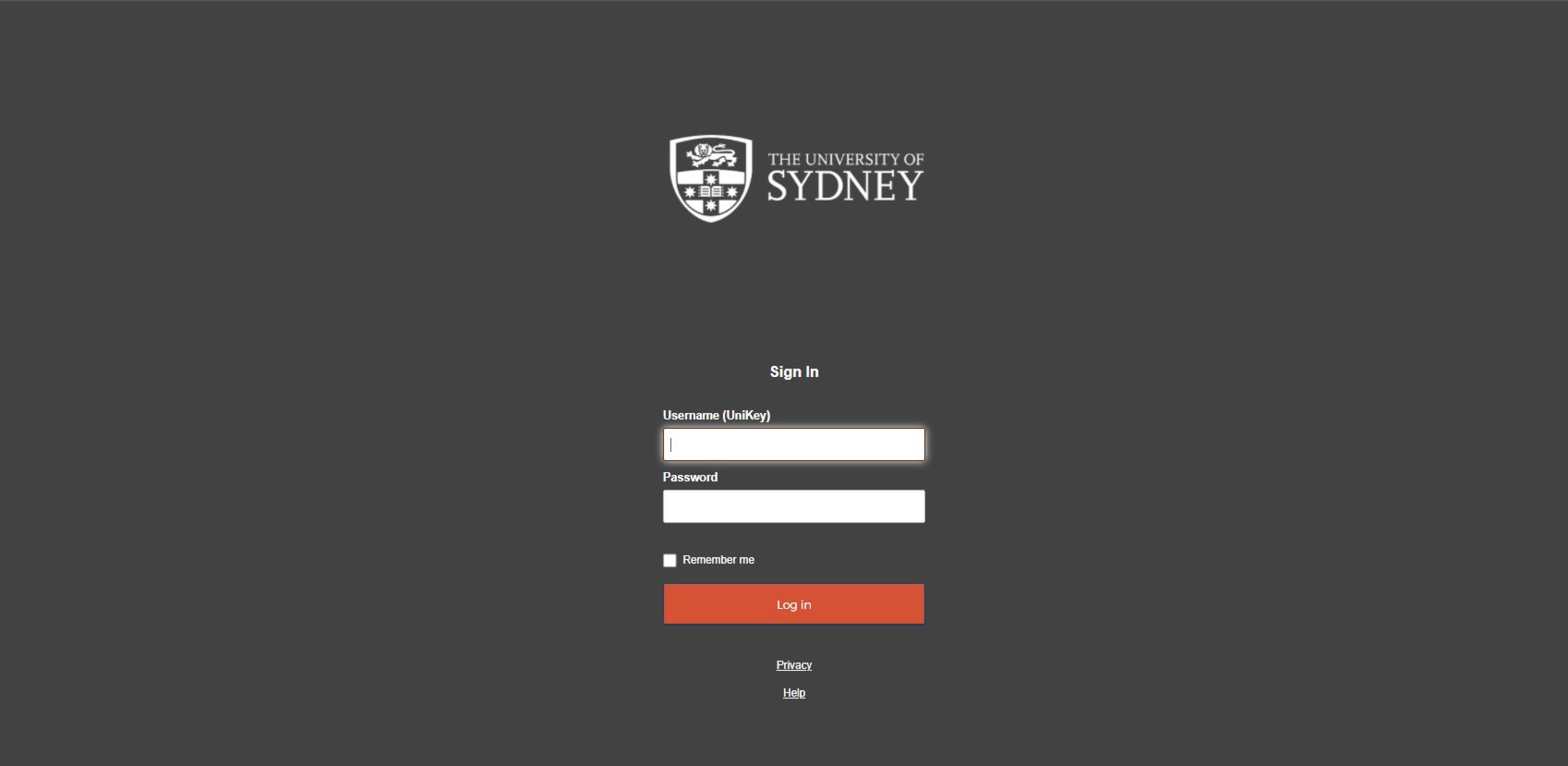
The single sign-on screen
A single sign-on (SSO) screen is displayed across university applications, meaning you'll use your UniKey and password to log in (you won't need to remember multiple passwords).
When you log in, you'll receive an Okta Verify push notification on your mobile device as well.
During the verification process, you can select 'Do not challenge me on this device again', and you won't be asked to verify unless it’s:
Be aware, our MFA solution is adaptive and as such you may be prompted to verify unexpectedly at other times if it considers that a risk-based event has occurred.
Logging in to the Virtual Private Network (VPN)
The majority of University systems are accessible once you are connected to the internet, however Endnote or other faculty-based file share systems are only accessible by connecting to the University’s Virtual Private Network (VPN). Log in to connect to the VPN. For everything else you will not need to connect to the VPN.
Okta FastPass allows you to log in to University systems without needing to enter a password or receive verification codes on your phone. Once you install and set up Okta FastPass, you can access university systems with just one click.
Using Okta FastPass is optional and available after you have enrolled. It works by linking your device to your identity. FastPass is available on Mac and Windows laptops or desktops only. It is not supported on mobile devices, iPads, Linux or Chromebooks.
When using Okta FastPass for the first time, you might be prompted with a request to look for and connect to any device on your local network. Select 'Allow'. You will only need to do this once.
If you select 'Block', you will not be able to use Okta FastPass and will need to login using the old method. Follow our instructions to change this setting.
When using Okta FastPass for the first time, you might be prompted with a request to look for and connect to any device on your local network. Select 'Allow'. You will only need to do this once.
If you select 'Block', you will not be able to use Okta FastPass and will need to login using the old method. Follow our instructions to change this setting.
When your first log in to a University application, you will be prompted to set up password management self-service.
Once set up, follow the guide to use password management to either change your password or recover access should you forget your password or lock your account.
If you’ve forgotten your password you can easily reset your password online by clicking on “Forgot password?" from the Single Sign-On screen, provided you have set up password recovery options.
For more information about forgotten passwords, check our article on how you can change, recover, reset or unlock your password using the Okta Password Management Service. Passwords are automatically synced across devices when changing your password.
Alternatively, phone us or visit a staffed learning hub on campus. You will need to bring photo ID.
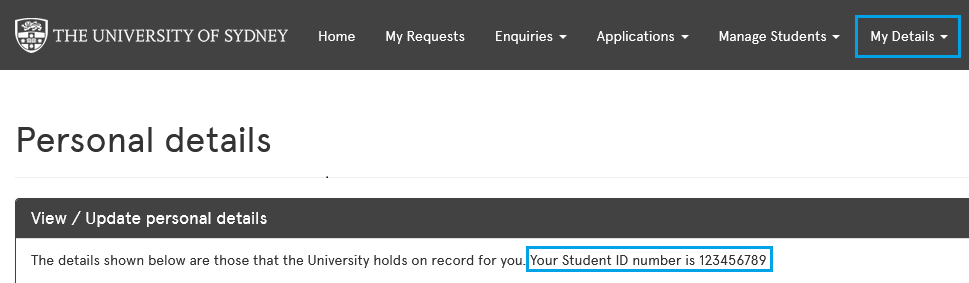
Your Student Identification Number (SID) is a unique nine-digit number that identifies you as a student at the University. If you’ve forgotten your SID, you can find it in Sydney Student. Go to ‘My details’ and then ‘Personal details’. Alternatively you will also find your SID on your physical student card.
If you have any questions or issues about multi-factor authentication, check out the Frequently Asked Questions page.
If you experience issues with Okta FastPass, you can find troubleshooting info <here>.
Alternatively, you may contact the Shared Services Centre on 1800 SYD UNI (1800 793 864) or +61 2 8627 1444 (option 4 for ICT) or email ict.support@sydney.edu.au. More detail about the personal information collected by the University can be found on the MFA privacy collection notice.